Data Management
Network
A network requires four essential steps between a user device and the web service:
- DNS Resolution
- Port Forwarding
- Reverse Proxy
- Server Each of these must be configured properly for the server to function.
DNS Resolution
DNS resolution is the step where a user’s device takes the inputted URL, e.g. myhomelab.com, and tried to find its IP address. This is handled by DNS providers, who operate large servers which are well-known by internet devices. A user device will request domain name resolution from one of these DNS servers, and the server will either respond with the desired IP address, or with the address of another DNS server to check.
When you buy a domain name, like myhomelab.com, you have to go to your domain provider (I use Namecheap) and configure the domain name to point to your home gateway’s IP address. A site like WhatIsMyIPAddress can tell you your home IP. You would take this IP, let’s say it’s 173.65.188.38, and enter it into Namecheap’s “Advanced DNS” page, then any devices searching for myhomelab.com would be redirected to 172.65.188.38, and reach your home gateway and router.
In this stage, there is only one thing that can hinder a homelab: dynamic DNS. ISPs will reshuffle home IP addresses periodically, assigning a new one to your home gateway. This means that when a device tried to search for myhomelab.com and is handed 173.65.188.38 by the DNS server, this IP address will be outdated, and your home gateway will be at some other address, thus making you unreachable. Sometimes DDNS can be turned off in the router settings, sometimes this isn’t an option. If it can’t be disabled, then you can use a service like DDNS Updater to update your domain name’s associated IP. DDNS Updater is a service that you can configure with your DNS provider’s API key or credentials and which will periodically push updates to the DNS provider, letting them know your current home IP address, so that even if it is changed, the Updater will automatically notify the DNS server of the new IP address.
Port Forwarding
Modern routers have advanced security features. One of the most basic of these features is blocking traffic that originates from outside of the home network, unless allowed by a device on the home network. For example, if you had a desktop computer idling on your home network and you were playing a non-network game on a Playstation, then there would be no traffic going into or out of the router to the wider internet (routers themselves often communicate technical things with the ISP, but no traffic from LAN devices). If a hacker wanted to send a magical remote control signal to your Playstation which would take control of the PS in an instant, this data packet would be blocked by the router. But if the PS or the desktop wanted to send a data packet out to, say, youtube.com, then the router would allow it through. And the router would also allow data packets back from youtube.com, because they were responses to previous communications initiated inside the home network, not initiated from without. This is a stateful firewall and is part of Network Address Translation (NAT).
To have a server at home, one would need to accept internet traffic originating from outside the home network, therefore we must create a hole in the firewall to allow in only the desired internet traffic, only to the device hosting the server.
Routers also manage ports. A port is a software-defined endpoint for communications which allow multiple devices to send packets through the router at the same time, which they do by assigning a port number to all their communications. Certain communications use standard ports, like HTTP on port 80, HTTPS on port 443, SSH on port 22, and email SMTP on port 25 (these are not required ports, but 99% of all devices use these ports for these protocols).
To expose the homelab, we must choose a port to use for internet communications, and open it to incoming web traffic, then instruct the router to point all such traffic to one specific device on the local network. This is done in router settings by assigning port forwarding rules that specify which protocol to allow through and which device to send it to.
Reverse Proxy
A reverse proxy acts as an intermediary server that receives incoming client requests from the internet and forwards them to the appropriate backend services on your home network, while also handling responses back to the client. Unlike a forward proxy (which clients use to access the web anonymously), a reverse proxy sits on the server side, providing a single entry point for multiple applications. This hides your internal network structure from outsiders, enhances security, and enables features like load balancing, caching, and SSL/TLS termination.
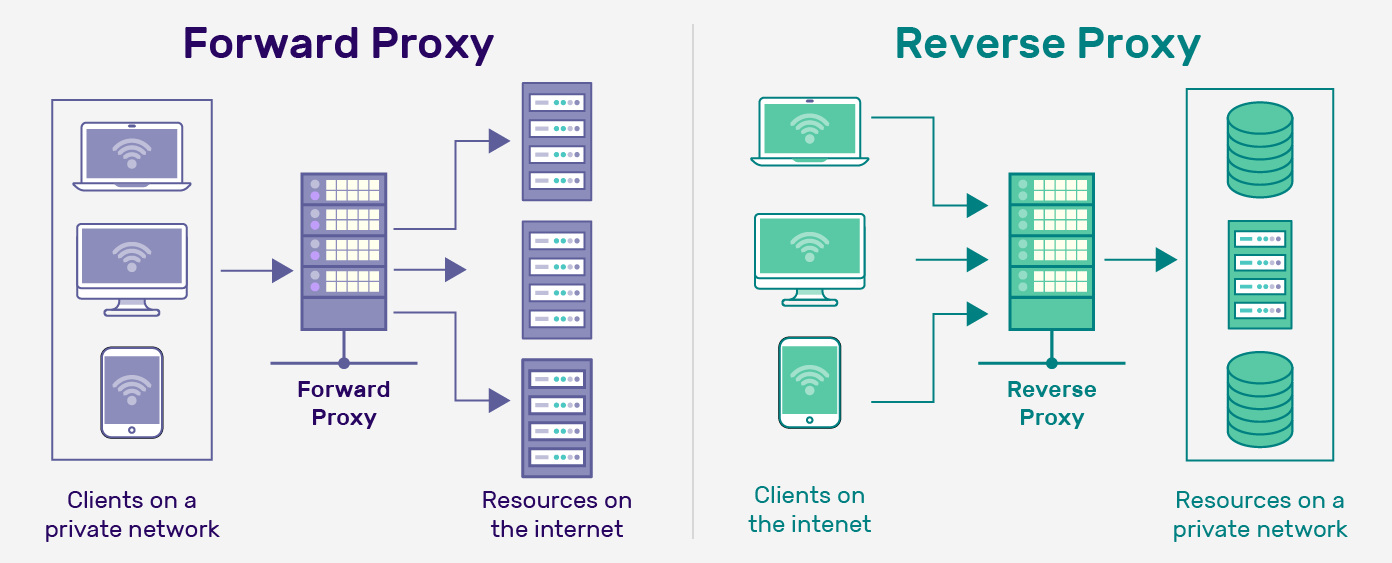 My homelab, for example, only exposes router ports 443 and 80, pointing to my instance of Nginx Reverse Proxy, which then directs traffic to other services on the server. So I have only one entrypoint and exit point for the entire network; the alternative is to have every service exposed nakedly, and to port forward as many ports as I have services running, which becomes impractical.