Intro
I made a page where I could store documents relating to the Work of the Mind. These documents are speeches, autobiographies, poems, etc., and I realized it became difficult to keep track of my position on the page as I read, I would get lost and have to reread the same landmark passages multiple times. I thought, if only I could put down a bookmark like in a real book!
I present this small HTML component which generates a draggable bookmark that can be moved around the page as you read. It consists of two components: the toggle switch, and the floating bookmark. See it in action here.
Requirements
An HTML bookmark must be similar to a real bookmark, and therefore must:
- be visually distinct,
- toggle on an off,
- be draggable around the page,
- become attached to the page when the user scrolls, if not currently dragging.
Visual Design
I conceived of this as just an arrow pointing to my most recent paragraph. At first I wanted it to be an image of a sort of traffic sign arrow, or a cardboard cutout arrow used by sign-twirlers; however in the interest of not doing too much or making my job too difficult, I decided to make an MVP with an ASCII arrow and label.
I already had styled my webpage for a black and white theme, so I could leave the ASCII characters as plain white text on a black background.
⇦ BOOKMARK<button id="floating-bookmark"
aria-label="Bookmark"
title="Drag to reposition">
<span class="bookmark-arrow">⇦</span>
<span class="bookmark-text">BOOKMARK</span>
</button>The bookmark on the page:
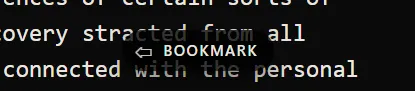
 At this point, however, if the bookmark is placed over the main body of text, it becomes visually confused and easy to lose among the text:
 This breaks Requrement (1). For that reason, I style it with a transparent black shadow to keep it visually distinguished above the background text:
#floating-bookmark {
color: var(--text-color);
border: none;
border-radius: 999px;
/* Transparent Box Shadow */
background: rgba(0, 0, 0, 0.78);
box-shadow: 0 6px 18px rgba(0,0,0,0.5);
}
Toggle
The bookmark should only appear when it’s wanted, so the user should be able to turn it on or off. To that end, I created a styled toggle switch that sits in the page header:
<div class="bookmark-toggle">
<span class="toggle-label">Draggable Bookmark</span>
<label class="switch" title="Toggle bookmark">
<input type="checkbox" onclick="toggleVisibility()" id="bookmark-toggle">
<span class="slider round"></span>
</label>
</div>.bookmark-toggle {
display: flex;
flex-direction: row;
align-items: center;
gap: 10px;
}
.toggle-label {
font-size: 10pt;
}
.switch {
position: relative;
display: inline-block;
width: 38px;
height: 20px;
flex: 0 0 auto;
}
.switch input {
opacity: 0;
width: 0;
height: 0;
}
.slider {
position: absolute;
cursor: pointer;
inset: 0;
box-shadow: 0 0 0 1px rgba(255,255,255,0.3);
transition: .2s;
}
.slider:before {
position: absolute;
content: "";
height: 14px;
width: 14px;
left: 3px;
bottom: 3px;
background-color: #eae6dd;
transition: .3s;
}
input:checked + .slider {
background-color: #282828;
}
input:focus + .slider {
box-shadow: 0 0 0 1px rgba(255,255,255,0.3);
}
input:checked + .slider:before {
transform: translateX(18px);
}
.slider.round {
border-radius: 999px;
}
.slider.round:before {
border-radius: 50%;
}function toggleVisibility() {
const bookmark = document.getElementById("floating-bookmark");
const checkbox = document.getElementById("bookmark-toggle");
if (!bookmark || !checkbox) return;
if (checkbox.checked)
bookmark.style.display = "inline-flex";
else
bookmark.style.display = "none";
}
The CSS here is pretty standard for creating this type of slider toggle (which is a checkbox under the hood). The JS, too, simply changes the visibility of the bookmark element itself. The styling was the hardest part to get right, to make the active slider state in particular blend well with the muted aesthetic of the page.
Dragging Function
For this bookmark to work, it has to be able to move around the page to wherever the user takes it, and to stay put whenever the user is not dragging. How can that happen? How does any HTML element become draggable around a document?
I needed Javascript. Dragging is defined as the mouse moving freely and the dragged element following it. The dragging will start with an onPointerDown() event, end with an onPointerUp() event, and between those two endpoints every onPointerMove() will define new coordinates at which the dragged element will be displayed. So, I could establish some basic structure:
// The move events
element.addEventListener("pointerdown", onPointerDown); // Call on element grab
window.addEventListener("pointermove", onPointerMove); // Calculate new coords
window.addEventListener("pointerup", onPointerUp); // End move eventNow I could work out the logic here. In the onPointerDown() event, I had to capture the bookmark’s starting coordinates, capture the pointer, and possibly track dragging status through a global variable:
function onPointerDown(e) {
// Prevent text selection
e.preventDefault();
// Toggle some global tracker variable
dragging = true;
// Add a class for optional restyling while dragging
element.classList.add("dragging");
// Capture element starting points
startX = e.clientX;
startY = e.clientY;
const rect = element.getBoundingClientRect();
startLeft = rect.left + window.scrollX;
startTop = rect.top + window.scrollY;
// Capture the pointer,
// so all future pointer move events will be sent to this element.
el.setPointerCapture(e.pointerId);
}Then I did the opposite in the onPointerUp() event
function onPointerUp(e) {
// Track global dragging state
if (!dragging) return;
// End global dragging
dragging = false;
element.classList.remove("dragging");
// Release
element.releasePointerCapture(e.pointerId);
}And at every instance between the down and up events, I could run the following:
function onPointerMove(e) {
// Track global dragging state
if (!dragging) return;
// Compute deltas, from pointer pos to element starting point
const dx = e.clientX - startX;
const dy = e.clientY - startY;
// Assign new points
let newLeft = startLeft + dx;
let newTop = startTop + dy;
// Apply new coordinates
el.style.left = newLeft + "px";
el.style.top = newTop + "px";
}Some Problems
There are some problems evident in the code above. Namely,
- the bookmark can move out of the page boundaries, and be lost,
- if the page is resized, the bookmark can fall off the screen.
But both of these could be ameliorated in turn. First, I could limit the bookmark’s movements using a clamp function to make sure its position is never outside the visual document boundaries:
// Helper function to calculate and return new on-screen coordinates
function clampPosition(left, top) {
const minX = 12;
const minY = 12;
const maxX = window.scrollX + window.innerWidth - element.offsetWidth - 16;
const maxY = window.scrollY + window.innerHeight - element.offsetHeight - 12;
return {
left: Math.min(Math.max(left, minX), maxX),
top: Math.min(Math.max(top, minY), maxY)
};
}
function onPointerMove(e) {
// ...
let newLeft = startLeft + dx;
let newTop = startTop + dy;
// Clamp to viewport
const clamped = clampPosition(newLeft, newTop);
newLeft = clamped.left;
newTop = clamped.top;
element.style.left = newLeft + "px";
element.style.top = newTop + "px";
}
function onPointerUp(e) {
// ...
const rect = element.getBoundingClientRect();
/* Convert viewport → document coordinates and clamp */
const docLeft = window.scrollX + rect.left;
const docTop = window.scrollY + rect.top;
const clamped = clampPosition(docLeft, docTop);
element.style.left = clamped.left + "px";
element.style.top = clamped.top + "px";
}Then, I could account for a window resize like so, which will not move the bookmark if the window gets larger, but will keep it within boundaries if the windows shrinks:
// Re-clamp on window resize
window.addEventListener("resize", fixBookmarkPosition);
function fixBookmarkPosition() {
// Check if bookmark lies outside window bounds
const rect = element.getBoundingClientRect();
const clamped = clampPosition(rect.left + window.scrollX, rect.top + window.scrollY);
// Assign new values to keep on page
element.style.left = clamped.left + "px";
element.style.top = clamped.top + "px";
}It was also important to preempt problems that would arise during mobile use. These two attributes in the styling of this element are vital.
#floating-bookmark {
/* ... other attributes ... */
/* Prevent scrolling while dragging on mobile */
touch-action: none;
/* Prevent text selection while dragging on mobile */
user-select: none;
}With this I had a robust system that satisfied Requirement (3).
Anchor Function
Anyone can get an HTML element to be draggable and to stay put on the screen using the position: fixed attribute, which causes the element to float above the DOM. But fixed anchors the element to the viewport, not to the document, so in this case a uesr could scroll away and the bookmark with follow his screen. This is clearly undesirable, and I must prefer position: absolute, which will define the bookmark’s coordinates relative to the document, not relative to the screen. Therefore,
#floating-bookmark {
position: absolute;
/* ... other attributes ... */
}And the reader should also take note of something he may have missed a moment ago: these two lines in onPointerUp() end the drag by positioning the element relative to absolute document coordinates:
const docLeft = window.scrollX + rect.left;
const docTop = window.scrollY + rect.top;So I satisfied Requirement (4).
The Whole Code

The Bookmark
Place this anywhere in the same document as the Toggle Switch below.
<!-- --- Draggable Floating Bookmark --- -->
<button id="floating-bookmark"
        aria-label="Bookmark"
        title="Drag to reposition">
  <span class="bookmark-arrow">⇦</span>
  <span class="bookmark-text">BOOKMARK</span>
</button>#floating-bookmark {
position: absolute;
left: 12px;
top: 200px;
max-width: calc(100% - 24px);
display: none;
align-items: center;
gap: 0.4em;
padding: 0.45em 0.8em 0.45em 0.6em;
border: none;
border-radius: 999px;
background: rgba(0, 0, 0, 0.78);
color: var(--text-color);
font-family: system-ui, serif;
font-size: 0.85rem;
letter-spacing: 0.08em;
box-shadow: 0 6px 18px rgba(0,0,0,0.5);
cursor: grab;
z-index: 99999;
touch-action: none;
user-select: none;
}
#floating-bookmark.dragging {
cursor: grabbing;
box-shadow: 0 12px 30px rgba(0,0,0,0.6);
}
/* Arrow styling */
.bookmark-arrow {
font-size: 1.1em;
line-height: 1;
opacity: 0.85;
}
/* Text styling */
.bookmark-text {
font-size: 0.72em;
font-weight: 600;
white-space: nowrap;
}
/* Keyboard focus */
#floating-bookmark:focus {
outline: 2px solid rgba(255,255,255,0.15);
outline-offset: 3px;
}(() => {
const el = document.getElementById("floating-bookmark");
if (!el) return;
let dragging = false;
let startX = 0, startY = 0;
let startLeft = 0, startTop = 0;
// Default: 12px from right edge, 200px from top
el.style.left = (window.innerWidth - el.offsetWidth - 12) + "px";
el.style.top = "200px";
function clampPosition(left, top) {
const minX = 12;
const minY = 12;
const maxX = window.scrollX + window.innerWidth - el.offsetWidth - 16;
const maxY = window.scrollY + window.innerHeight - el.offsetHeight - 12;
return {
left: Math.min(Math.max(left, minX), maxX),
top: Math.min(Math.max(top, minY), maxY)
};
}
function onPointerDown(e) {
e.preventDefault();
dragging = true;
el.classList.add("dragging");
startX = e.clientX;
startY = e.clientY;
const rect = el.getBoundingClientRect();
startLeft = rect.left + window.scrollX;
startTop = rect.top + window.scrollY;
el.setPointerCapture(e.pointerId);
}
function onPointerMove(e) {
if (!dragging) return;
const dx = e.clientX - startX;
const dy = e.clientY - startY;
let newLeft = startLeft + dx;
let newTop = startTop + dy;
// Clamp to viewport
const clamped = clampPosition(newLeft, newTop);
newLeft = clamped.left;
newTop = clamped.top;
el.style.left = newLeft + "px";
el.style.top = newTop + "px";
}
function onPointerUp(e) {
if (!dragging) return;
dragging = false;
el.classList.remove("dragging");
el.releasePointerCapture(e.pointerId);
const rect = el.getBoundingClientRect();
/* Convert viewport → document coordinates and clamp */
const docLeft = window.scrollX + rect.left;
const docTop = window.scrollY + rect.top;
const clamped = clampPosition(docLeft, docTop);
el.style.left = clamped.left + "px";
el.style.top = clamped.top + "px";
}
function fixBookmarkPosition() {
const rect = el.getBoundingClientRect();
const clamped = clampPosition(rect.left + window.scrollX, rect.top + window.scrollY);
el.style.left = clamped.left + "px";
el.style.top = clamped.top + "px";
}
// Optional: re-clamp on window resize
window.addEventListener("resize", fixBookmarkPosition);
el.addEventListener("pointerdown", onPointerDown);
window.addEventListener("pointermove", onPointerMove);
window.addEventListener("pointerup", onPointerUp);
fixBookmarkPosition();
})();The Toggle Switch
Place this anywhere in your document. Make sure the bookmark code is also present.
<!-- Floating Bookmark Toggle -->
<div class="bookmark-toggle">
  <span class="toggle-label">Draggable Bookmark</span>
  <label class="switch" title="Toggle bookmark">
    <input type="checkbox" onclick="toggleVisibility()" id="bookmark-toggle">
    <span class="slider round"></span>
  </label>
</div>
.bookmark-toggle {
display: flex;
flex-direction: row;
align-items: center;
gap: 10px;
}
.toggle-label {
font-size: 10pt;
}
.switch {
position: relative;
display: inline-block;
width: 38px;
height: 20px;
flex: 0 0 auto;
}
.switch input {
opacity: 0;
width: 0;
height: 0;
}
.slider {
position: absolute;
cursor: pointer;
inset: 0;
box-shadow: 0 0 0 1px rgba(255,255,255,0.3);
transition: .2s;
}
.slider:before {
position: absolute;
content: "";
height: 14px;
width: 14px;
left: 3px;
bottom: 3px;
background-color: #eae6dd;
transition: .3s;
}
input:checked + .slider {
background-color: #282828;
}
input:focus + .slider {
box-shadow: 0 0 0 1px rgba(255,255,255,0.3);
}
input:checked + .slider:before {
transform: translateX(18px);
}
.slider.round {
border-radius: 999px;
}
.slider.round:before {
border-radius: 50%;
}function toggleVisibility() {
const bookmark = document.getElementById("floating-bookmark");
const checkbox = document.getElementById("bookmark-toggle");
if (!bookmark || !checkbox) return;
if (checkbox.checked)
bookmark.style.display = "inline-flex";
else
bookmark.style.display = "none";
}